Diving into the world of electronics can seem intimidating, but with the right tools, it becomes an exciting adventure, and there is no better starting point than exploring projects with arduino for beginners. Arduino is an open-source electronics platform based on easy-to-use hardware and software. It’s designed for artists, designers, hobbyists, and anyone interested in creating interactive objects or environments. The beauty of Arduino lies in its simplicity and the vast community supporting it, making it the perfect gateway for those with no prior experience in electronics or programming. This guide will walk you through several foundational projects, transforming abstract concepts into tangible, working creations. These initial steps are crucial for building the confidence needed to tackle more complex projects based on arduino for beginners in the future.
The journey begins with understanding that you are not just learning to code; you are learning to make the digital world interact with the physical one. Each LED you light up and each sensor you read is a small victory that builds a strong foundation. We will focus on simple arduino projects for beginners that require minimal components and introduce core programming concepts one at aa time. This step-by-step approach ensures that you understand the "why" behind every connection and line of code, which is essential for your growth. Embarking on projects based on arduino for beginners is a rewarding experience that combines creativity with technical skill.
- Arduino Beginner Projects: Your Gateway to Electronics and Programming
- How to Program an Arduino: A Comprehensive Guide for Beginners
- Arduino Based Projects for Beginners
- Smartphones in 2025: A Glimpse into the Future of Mobile Technology
Daftar Isi
- 1 Your Beginner’s Arduino Toolkit: What You’ll Need
- 2 Project 1: The "Hello, World!" – Blinking an LED
- 3 Project 2: User Input – Controlling an LED with a Pushbutton
- 4 Project 3: Analog Control – Fading an LED with a Potentiometer
- 5 Project 4: Making Some Noise – Simple Piezo Buzzer Melody
- 6 Moving Forward
Your Beginner’s Arduino Toolkit: What You’ll Need
Before we start building, it’s essential to gather a few basic components. Most of these are included in any standard Arduino starter kit, which is a highly recommended purchase for anyone serious about learning. These kits provide excellent value and contain everything you need for these and many other projects based on arduino for beginners.
- An Arduino Board: The Arduino UNO R3 is the most common and well-documented board, making it perfect for beginners.
- A Breadboard: This is a plastic board with a grid of holes that allows you to build and prototype circuits without any soldering.
- Jumper Wires: These wires connect components on the breadboard to each other and to the Arduino board.
- LEDs (Light Emitting Diodes): You’ll want a variety of colors. These are the simplest way to get visual feedback from your circuit.
- Resistors: These components limit the flow of current. You’ll need some 220-ohm (Ω) resistors for your LEDs and 10k-ohm resistors for other tasks.
- Pushbuttons: These allow you to provide simple user input to your projects.
- A Potentiometer: This is a variable resistor with a knob that allows you to provide a range of analog input.
- A Piezo Buzzer: This simple component can produce tones and beeps, adding sound to your projects.
- A USB Cable: To connect your Arduino to your computer for programming and power.
Project 1: The "Hello, World!" – Blinking an LED
This is the quintessential first project for anyone starting with microcontrollers. It’s simple, satisfying, and teaches you the most fundamental concepts: setting up a pin as an output and controlling it with code. This is the cornerstone of all visual feedback in many projects based on arduino for beginners.
Components Needed
- Arduino UNO
- Breadboard
- 1 x LED (any color)
- 1 x 220Ω resistor
- 2 x Jumper wires
The Circuit
- Connect a jumper wire from the GND (Ground) pin on the Arduino to the blue rail (ground rail) on the breadboard.
- Insert the LED into the breadboard. Note that LEDs have two legs of different lengths. The longer leg is the positive side (anode), and the shorter leg is the negative side (cathode).
- Connect the shorter leg (cathode) of the LED to the ground rail on the breadboard using a short jumper wire.
- Connect one end of the 220Ω resistor to the same row as the longer leg (anode) of the LED.
- Connect the other end of the resistor to a different row on the breadboard.
- Finally, connect a jumper wire from the digital pin 13 on the Arduino to the row where the resistor is connected.
The Code
The Arduino IDE (Integrated Development Environment) is where you will write and upload your code. The code, called a "sketch," has two main parts: setup() which runs once when the board powers on, and loop() which runs continuously.
// This is a comment. The code for this first project is very simple.

void setup()
  // Initialize digital pin 13 as an output.
  pinMode(13, OUTPUT);


void loop()
  digitalWrite(13, HIGH);   // Turn the LED on (HIGH is the voltage level)
  delay(1000);              // Wait for a second (1000 milliseconds)
  digitalWrite(13, LOW);    // Turn the LED off by making the voltage LOW
  delay(1000);              // Wait for a second
Upload this sketch to your Arduino, and you should see the LED blink on and off every second. Congratulations, you have completed your first of many projects based on arduino for beginners!
Now that you can send signals out from the Arduino, let’s learn how to take signals in. This project introduces digital input by using a pushbutton to control the LED. This simple interaction is the basis for more complex user interfaces in future projects based on arduino for beginners.
Components Needed
- Everything from Project 1
- 1 x Pushbutton
- 1 x 10kΩ resistor (optional, if not using internal pull-up)
- More jumper wires
The Circuit
- Keep the LED circuit from Project 1 as it is.
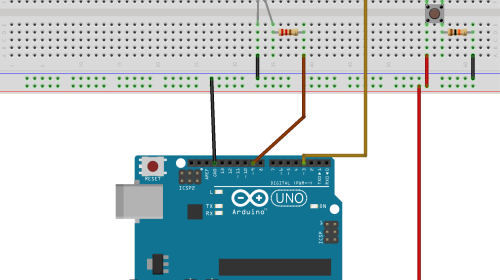
- Place the pushbutton on the breadboard, straddling the central divide.
- Connect one leg of the pushbutton to the 5V pin on the Arduino.
- Connect the diagonally opposite leg to digital pin 2 on the Arduino.
- Connect that same leg (the one going to pin 2) to the ground rail via a 10kΩ resistor. This is a "pull-down" resistor, ensuring the pin reads LOW when the button isn’t pressed.
The Code
This sketch will read the state of the button and turn the LED on only when the button is being pressed.
const int buttonPin = 2; // The number of the pushbutton pin
const int ledPin = 13;   // The number of the LED pin

int buttonState = 0; // Variable for reading the pushbutton status

void setup()
  pinMode(ledPin, OUTPUT);
  pinMode(buttonPin, INPUT); // Set the button pin as an input


void loop()
  // Read the state of the pushbutton value
  buttonState = digitalRead(buttonPin);

  // Check if the pushbutton is pressed.
  // If it is, the buttonState is HIGH
  if (buttonState == HIGH)
    digitalWrite(ledPin, HIGH); // Turn LED on
   else
    digitalWrite(ledPin, LOW);  // Turn LED off
This project introduces conditional logic (if-else), a fundamental concept in all programming. This type of interactive control is a hallmark of great projects based on arduino for beginners.
Project 3: Analog Control – Fading an LED with a Potentiometer
Digital signals are either on or off (HIGH or LOW). Analog signals, however, can have a range of values. A potentiometer allows us to provide a variable analog input, which we can use to control the brightness of an LED smoothly. Mastering analog signals is key for more nuanced projects based on arduino for beginners.
Components Needed
- Arduino UNO
- Breadboard
- 1 x LED
- 1 x 220Ω resistor
- 1 x 10kΩ potentiometer
- Jumper wires
The Circuit
- Set up the LED and its 220Ω resistor, but this time connect the jumper wire from the resistor to a PWM-capable pin on the Arduino, like pin 9 (marked with a ~).
- Place the potentiometer on the breadboard. It has three pins.
- Connect the leftmost pin to Ground (GND).
- Connect the rightmost pin to 5V.
- Connect the center pin to an analog input pin on the Arduino, such as A0.
The Code
We will read the analog value from the potentiometer and use it to set the brightness of the LED.
const int ledPin = 9;      // The PWM pin the LED is attached to
const int potPin = A0;     // The analog pin the potentiometer is attached to

int potValue = 0;        // Variable to store the value read from the potentiometer
int brightness = 0;      // Variable to store the calculated brightness

void setup()
  pinMode(ledPin, OUTPUT);


void loop()
  // Read the analog input from the potentiometer (value between 0 and 1023)
  potValue = analogRead(potPin);

  // Map the input range (0-1023) to the output range for the LED (0-255)
  brightness = map(potValue, 0, 1023, 0, 255);

  // Set the brightness of the LED
  analogWrite(ledPin, brightness);

  // A small delay to stabilize the reading
  delay(10);
Turning the knob on the potentiometer will now change the LED’s brightness from fully off to fully on. You’ve just learned about analogRead(), analogWrite(), and the incredibly useful map() function. This skill is transferable to many other projects based on arduino for beginners, such as controlling servo motors.
Project 4: Making Some Noise – Simple Piezo Buzzer Melody
Let’s move from visual feedback to audio feedback. A piezo buzzer can create simple tones. By controlling the frequency of the tone and the duration it plays, you can create simple melodies. This project is a fun and audible demonstration of your control over the Arduino. Many interactive projects based on arduino for beginners use sound for alerts or feedback.
Components Needed
- Arduino UNO
- Breadboard
- 1 x Piezo Buzzer
- Jumper wires
The Circuit
The circuit is incredibly simple.
- Connect the positive leg of the buzzer (often marked with a ‘+’) to digital pin 8 on the Arduino.
- Connect the negative leg to the GND pin.
The Code
This sketch uses the tone() function, which takes the pin number, the frequency (in Hertz), and an optional duration.
// This code will play a simple, recognizable tune.
#define NOTE_C4  262
#define NOTE_G3  196
#define NOTE_A3  220
#define NOTE_B3  247

int melody[] =
  NOTE_C4, NOTE_G3, NOTE_G3, NOTE_A3, NOTE_G3, 0, NOTE_B3, NOTE_C4
;

// note durations: 4 = quarter note, 8 = eighth note, etc.
int noteDurations[] =
  4, 8, 8, 4, 4, 4, 4, 4
;

void setup()
  // no setup needed


void loop()
  for (int thisNote = 0; thisNote < 8; thisNote++)
    // to calculate the note duration, take one second
    // divided by the note type.
    //e.g. quarter note = 1000 / 4, eighth note = 1000/8, etc.
    int noteDuration = 1000 / noteDurations[thisNote];
    tone(8, melody[thisNote], noteDuration);

    // to distinguish the notes, set a minimum time between them.
    // the note's duration + 30% seems to work well:
    int pauseBetweenNotes = noteDuration * 1.30;
    delay(pauseBetweenNotes);

    // stop the tone playing:
    noTone(8);

  delay(2000); // a longer pause before repeating the melody
This project introduces arrays and for loops, which are powerful tools for handling repetitive tasks and sets of data. It’s a fantastic way to see how programming structures can create complex results from simple commands, a key lesson in all projects based on arduino for beginners.
Moving Forward
You have now successfully built four foundational projects. You’ve learned about digital and analog I/O, control structures, and basic circuit building. These are the essential building blocks for almost any electronics project you can imagine. The key is to keep experimenting. Try combining these projects: make a device where pressing a button plays a tone, or where turning a potentiometer changes the pitch of the buzzer. The possibilities are endless, even with just these few components.
Continue exploring more projects based on arduino for beginners, such as using temperature sensors, controlling servo motors, or displaying information on an LCD screen. The community is your greatest resource; forums, tutorials, and project hubs are filled with inspiration and help. Remember that every expert was once a beginner, and these simple, successful projects based on arduino for beginners are your first confident steps into the larger world of technology and creation.